
What is a File?
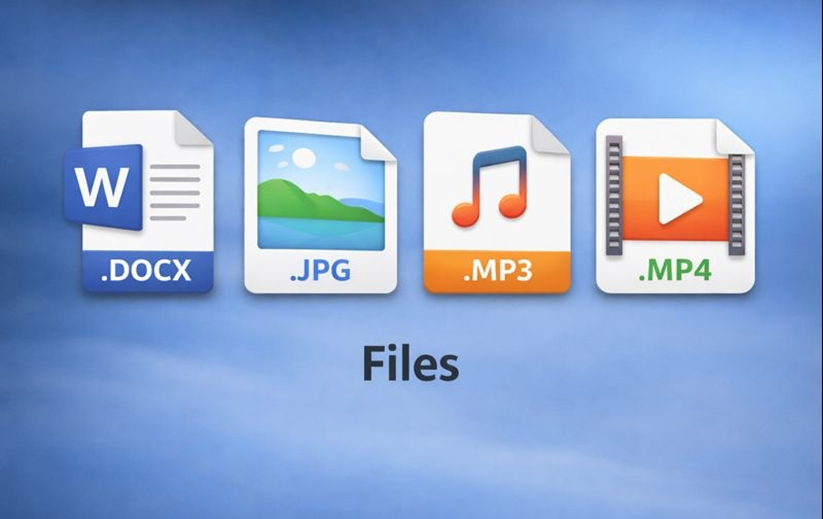
A file is a collection of data or information stored in a computer. A file contains text, images, videos, audio, or programs.
Examples of Files:
- Notes.docx (MS Word file)
- Marks.xlsx (Excel file)
- Photo.jpg/jpeg (Image file)
- Video.mp4 (Video file)
- Song.mp3 (Audio file)
📌 Every file has:
- File Name
- File Extension (like .docx, .pdf, .jpg)
What is a Folder?
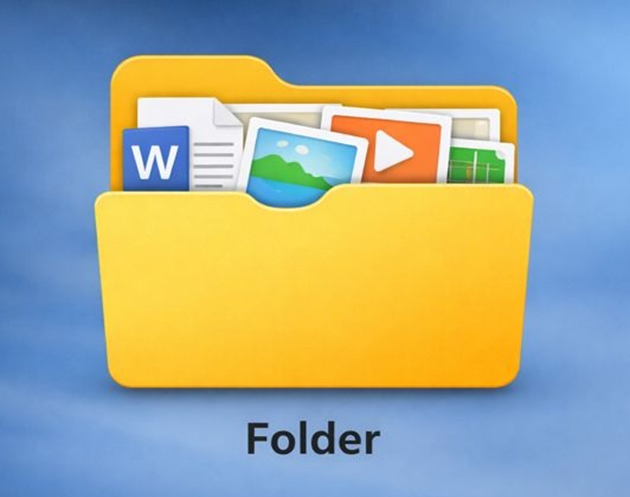
A folder is a container used to store and organize files in a computer. It can also contain sub-folders to keep related files together. Folders help in managing data easily and make files quick to find.
Example:
- 📁 Folder name: Computer Notes
Inside folder:- Lesson1.docx
- Lesson2.pdf
- Images (sub-folder)
Difference between File and Folder
| File | Folder |
| Stores data or information | Stores files and sub-folders |
| Has file extension | No file extension |
| Cannot contain other files | Can contain many files |
| Example: Notes.docx | Example: Computer Notes |
How to Create a New File

📌 Create a Word File :
- Right Click on Desktop
- Click New
- Select Microsoft Word Document
- Type file name
- Press Enter
- Double-click to open and write content
- 📌 Files can also be created inside software (Word, Excel, Paint, etc.).
How to Create a New Folder:
📌 Method 1: Right Click Method
- Go to Desktop or any drive
- Right Click on empty area
- Click New
- Click Folder
- Type folder name
- Press Enter
📌 Method 2: Shortcut:
- Press Ctrl + Shift + N
- New folder is created instantly.
- Rename Folder name
- Press Enter
What is Save?
Save is a command used in a computer to store data or changes made in a file. It keeps the latest work safely in the computer so that it is not lost. Save updates the file with the same name and at the same location and allows the user to use the file again in the future.
🔹 When to Use Save?
- When file is already created
- When you are updating an existing file
How to Save:
- Click File → Save
- OR press Ctrl + S
📌 Important Point:
Save updates the file without asking for name or location again.
What is Save As?
Save As is a command used to save a file with a new name, at a different location, or in a different file format. It creates a new copy of the file while keeping the original file unchanged. Save As is mainly used when saving a file for the first time or when we want another version of the same file.
🔹 When to Use Save As?
- Saving file for the first time
- Creating a copy of the same file
- Changing file type (e.g. Word to PDF)
🔹 How to Use Save As:
- Click File → Save As
- Choose location (Desktop, Documents, etc.)
- Type new file name
- Select file format (if needed)
- Click Save
Difference Between Save and Save As
| Save | Save As |
| Updates existing file | Creates a new file |
| Same name & location | New name or new location |
| Used again and again | Used when needed |
| Shortcut: Ctrl + S | Shortcut: F12 / File → Save As |