
1. How to Properly Start and Shut Down a Computer:
🖥️ How to Start a Desktop Computer.
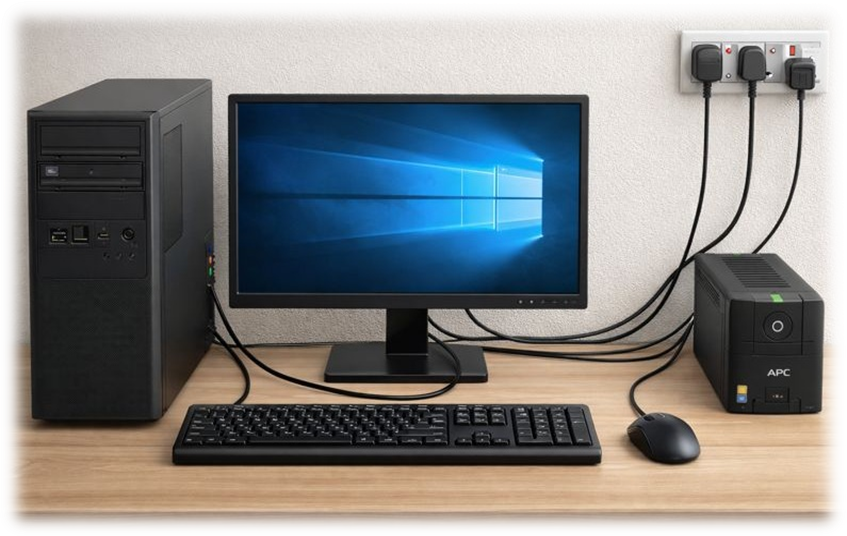
Desktop Computer:
- Switch on the main power supply.
- Turn on the UPS (if available).
- Press the Monitor power button
- Press the power button on the CPU cabinet.
- The computer will start loading the operating system (Windows).
💻 How to Start a Laptop Computer:
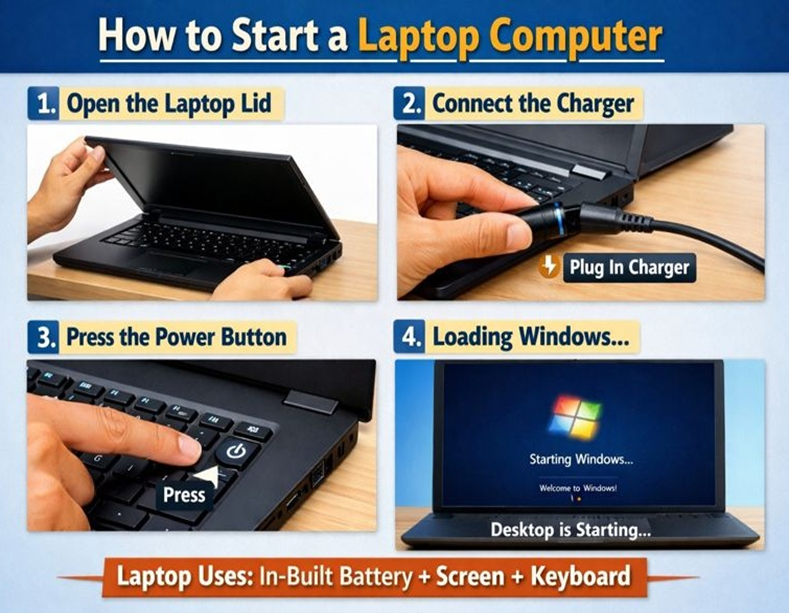
Laptop Computer:
- Open the laptop lid properly.
- Connect the charger (recommended if battery is low).
- Press the power button on the laptop keyboard or side panel.
- The laptop screen will turn on automatically.
- The system will start loading the operating system (Windows) and show the desktop.
🖥️ How to Shut Down a Desktop Computer :
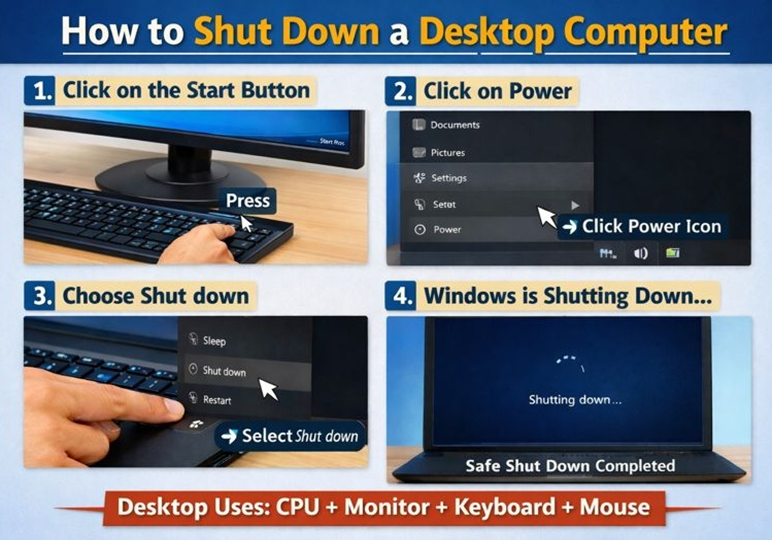
Desktop Computer:
- CPU cabinet off:
- Click on the Start button.
- Click on Power.
- Select Shut Down.
- Monitor off (Press the Monitor power button)
- Turn off the UPS (if available).
- Switch off the main power supply.
- Never turn off the computer directly from the power switch. Improper shutdown can damage Windows and files.
🖥️ How to Shut Down a Laptop Computer :
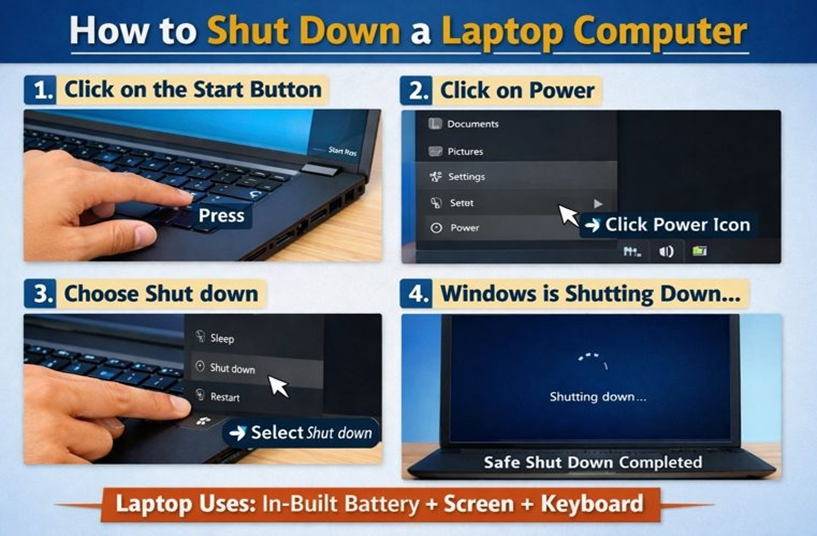
Laptop Computer:
- CPU off:
- Click on the Start button.
- Click on Power.
- Select Shut Down.
- Switch off the main power supply.
- Never turn off the computer directly from the power switch. Improper shutdown can damage Windows and files.
What is Desktop?
Computer Desktop :
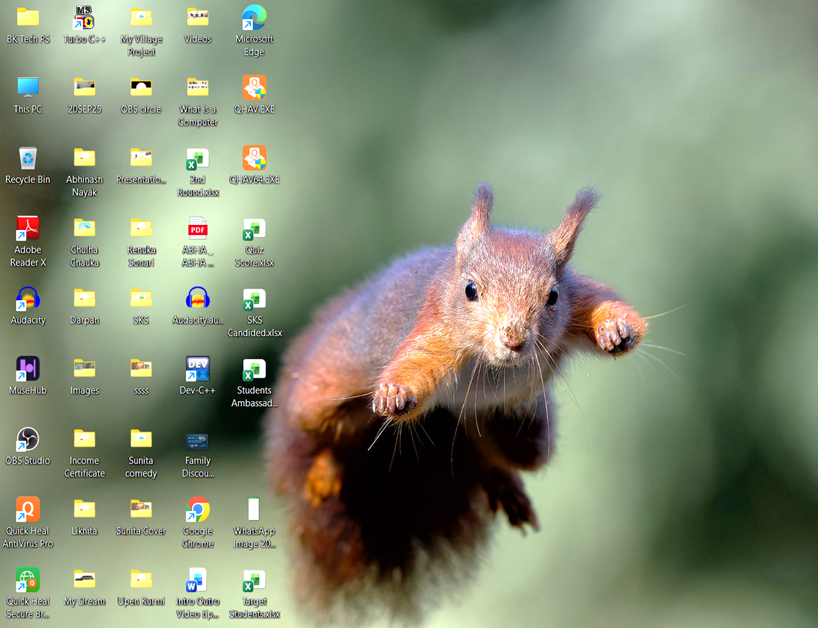
A desktop is the main screen of a computer that appears after the operating system is loaded. It provides a graphical user interface (GUI) where users can see icons, files, folders, and applications. The desktop allows users to access programs, manage files, and control the computer system easily. It acts as a working area and helps users interact with the computer in a simple and organized manner.
MAIN COMPONENTS OF DESKTOP:
a)Icons : Icons are small pictures on the desktop that represent files, folders, applications, or shortcuts. They help users to open programs quickly.
b)Taskbar : The taskbar is usually located at the bottom of the screen. It shows running applications, the Start button, and system information such as time and date.
c)Start Menu : The Start Menu provides access to all programs, settings, and system tools of the computer.
d)Wallpaper / Background : Wallpaper is the background image of the desktop. It can be changed to make the desktop attractive.
e)Notification Area : This area displays system icons like volume, network, battery, and clock.
What Can We Do by Right Clicking on the Desktop?
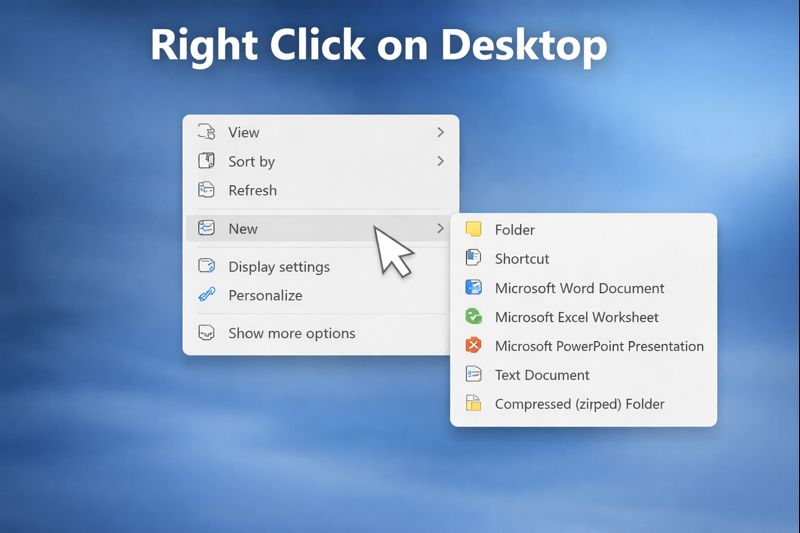
By right clicking on the desktop, a shortcut (context) menu appears. This menu provides several useful options that help users manage and customize the computer easily. The main functions are explained below:
1. View :
The View option is used to change the appearance of desktop icons. Using this option, we can:
- Change icon size (Large, Medium, Small)
- Arrange icons automatically
- Align icons properly on the desktop
- This helps keep the desktop clean and organized
2. Sort By :
The Sort by option helps to arrange files and folders on the desktop in an organized manner. Files can be sorted by:
- Name
- Date modified
- Type
- Size
3. Refresh :
The Refresh option reloads the desktop screen. It is used when new files or folders do not appear properly or when the desktop is not updated.
4. New :
The New option allows users to create new items on the desktop, such as:
- New folder
- Text document
- Word file and other file types
5. Display Settings :
Using Display Settings, users can:
- Change screen resolution
- Adjust display size and brightness
- Connect an external monitor or projector
6. Personalize :
The Personalize option is used to change the appearance of the desktop. It allows users to:
- Change wallpaper and background
- Apply themes and colors
- Customize fonts and lock screen
7. Other Options :
Depending on the system, right click may also show options like:
- Paste (to paste copied files)
- Shortcut settings or graphics options